
Key takeaways
- Programmed and freestyle sessions use the same set-logging workflow.
- Record actual reps and load, plus an RPE or RIR value and notes when useful.
- Only completed sets count toward totals and personal-record detection.
- Keep the app installed and signed in until pending offline changes finish syncing.
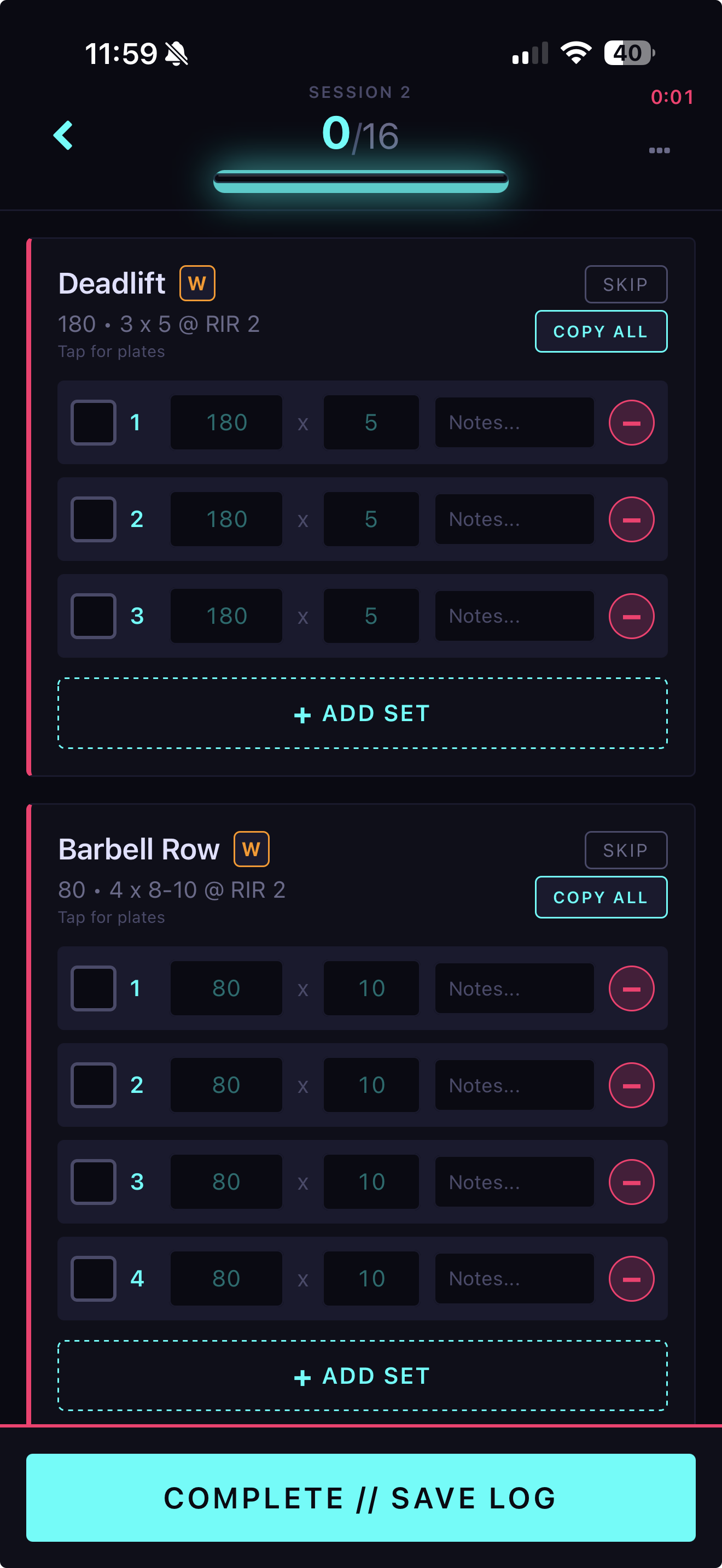
An active IronLedger workout with prescribed sets and per-set logging controls.
1
Start the session
Open the next scheduled day and tap the start action. For training outside your program, start a
freestyle session and add exercises as needed.
2
Enter each set
Record the completed reps and weight. Add an RPE or RIR value, or a note, when it will help you
interpret the session later.
3
Mark the set complete
Complete each set only after you perform it. IronLedger uses completed sets for workout totals
and personal-record checks.
4
Finish the workout
Tap Complete // Save log. If you typed values into sets you didn’t tick, choose Leave as
is or Mark all complete. Then review the summary, the optional session effort rating, and
any detected personal records.
When does a set count as completed?
Only completed sets count toward workout totals and personal-record detection. You can tap the set checkbox after completing a set or use the finish-workout prompt to resolve logged-but-unmarked sets. The rest timer can run between sets. Treat it as a reminder rather than a required prescription; your program, exercise, and training goal determine the appropriate rest period.Can I log a workout offline?
You can continue logging when connectivity is unavailable. Keep the app installed and signed in; pending cloud changes are processed when connectivity returns.Frequently asked questions
Can I log a workout that is not in my program?
Can I log a workout that is not in my program?
Yes. Start a freestyle session and add the exercises you perform. It appears in History with
your other completed sessions.
What happens if I enter values but forget the set checkbox?
What happens if I enter values but forget the set checkbox?
When you finish the workout, review the prompt for logged-but-unmarked sets. Confirm only the
sets you actually completed.
Will an offline workout be lost?
Will an offline workout be lost?
You can continue logging offline. Keep the app installed and signed in, then leave it open
briefly after reconnecting so pending cloud changes can process.
Next steps
Track effort accurately
Understand RPE, RIR, AMRAP sets, suggested warm-ups, and exercise labels.
Adjust the session
Reorder, replace, add, or correct exercises without changing future program days.